RFT IS AN INDEPENDENT MANUFACTURER OF AFTERMARKET PARTS AND IS NOT AFFILIATED WITH OR ENDORSED BY HME, NOR ARE RFT PARTS APPROVED BY HME FOR USE WITH HME DRIVE–THRU SYSTEMS.
0
My Cart
Resources
Drive-Thru Headset Programming Instructions
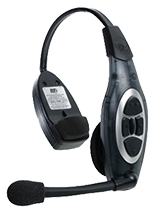
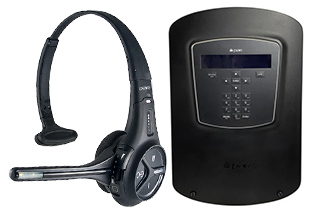
3M XT-1 Headset
Base Station:
Press the MODE key on the base station and enter 1-2-3-4. Press the MODE key again. USER MODE, ID=1 should appear on the display screen.
Press MODE three times. The system menu will appear on the screen.
Select 4 – REGISTRATION.
Select ADD A NEW HEADSET, then press ENTER.
Headset:
Insert a fully charged battery.
Power on the headset and wait for the green light to stop blinking.
Base Station:
Wait for the display to say “headset XX has been registered.”
Press MODE three times, and the system will go back to the home screen.
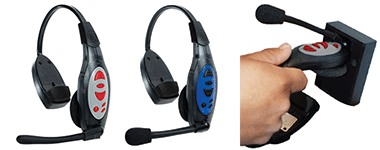
Rotate the mic towards the headband until it stops at the tab.
Insert the base of the headset into the programming station.
Press and hold the power button until the light flashes green.
Release the power button. Your headset is now programmed.
Enable Talk-Lock:
Make sure the headset is powered off.
Press and hold the LOCK button (center).
Press and release the power button while still holding the LOCK button until you hear audible tones. The power light will flash green, then change to red.
To enable talk-lock, press the LOCK button again. A RED LIGHT means that talk-lock is successfully enabled.
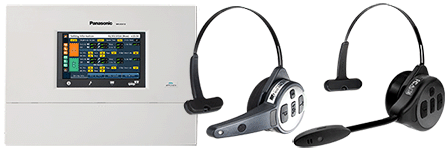
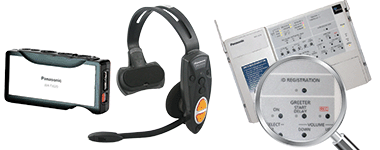
Press the ID Registration button on the center module (mounted on your wall) for three seconds until the LED light flashes red.
Make sure your headset or belt pack has a fully charged battery inserted. Then, hold down the “T1,” “T2” and red power button on the headset at the same time until you see a flashing yellow light on the headset.
Release all three buttons.
Press the “T1” button on your headset. Release and wait for the flashing yellow light on the headset to turn solid yellow (this could take several seconds). If you want to register multiple headsets at once, repeat steps 2 and 3 before proceeding to 4.
When you’re done registering all headsets, press the ID Registration button on the center module to end the registration process. The light on your headset(s) will turn solid green.
Make sure the headset has a fully charged battery inserted and the headset is powered OFF.
Hit any button the BASE STATION to light up the screen.
Select the MENU option, located on the bottom left of the screen with a back arrow.
Select the REGISTER HEADSETS option, located at the top right of the screen with a black arrow.
Select REGISTER HEADSETS, located on the bottom right of the screen with a black arrow.
Then select REGISTER SINGLE (bottom left) or REGISTER MULTIPLE (bottom right, only if you have multiple headsets to register.)
On your headset, hold down the “B-BUTTON” and the RED POWER BUTTON together.
Once you can see the RED and GREEN lights on the headset, you are in registration mode and can release the buttons.
When the light on the headset turns green, that means it is registered. This may take up to a minute. The base station will then revert to the home screen automatically.
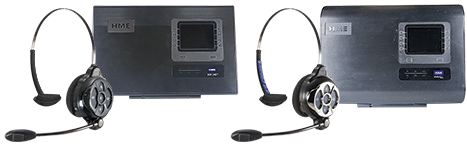
The following instructions are for use with an HME ION 6100 headset and the HME ION 6100 base station.
Make sure the headset has a fully charged battery installed and the power is OFF.
Hit any button on the BASE STATION to light up the screen.
Select the MENU option (bottom left, black arrow.)
Select the REGISTER HEADSETS option (top right, black arrow.)
Select the REGISTER HEADSETS option (bottom right, black arrow.)
Select REGISTER SINGLE (bottom left) or REGISTER MULTIPLE (bottom right, only if you have multiple headsets to register.)
On your headset, hold down the “B-BUTTON” and the RED POWER BUTTON together.
Once you see the RED and GREEN lights on the headset, you are in the registration mode and can release the buttons.
When the light on the headset turns green, that means it is registered. This. may take up to a minute. The base station will revert to the home screen automatically.
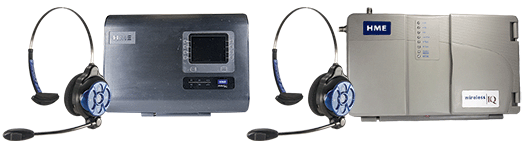
The following instructions are for use with an HME ION 6100 headset and the HME Wireless IQ 6000 base station.
Place battery in headset and do not turn the unit on during this step.
Open the base station on the wall be depressing the clips at the top.
Once the base station is open, locate the LED display to the left as well as three black buttons.
Press the black START REGISTRATION button in the lower right hand corner.
You should see a “O” (half zero, just the bottom of the LED “8” will be lit) appear on the LED display.
Turn on the headset while pressing the “B-BUTTON,” then release both buttons at the same time. You will hear registration mode communications through the headset.
It will take only a few seconds and the red light on the unit should turn green.
If an “F” flashes on your base station, call (800) 598-2370. “F” indicates that maximum units have been registered and history needs to be cleared.
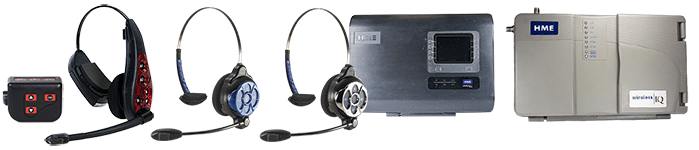
HME Wireless IQ 6000 Headset, 6000 Belt Pack, ION 6100 Headset, and Chrome 6300 Headset
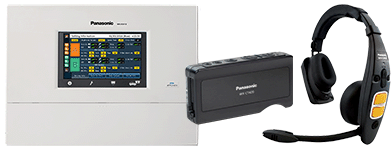
The following instructions are for use with an HME ION 6100 headset, HME Chrome 6300 headset, HME Wireless IQ 6000 belt pack/headset, and the HME ION 6000 base station.
Make sure the headset has a fully charged battery installed and the power is OFF.
Hit any button on the BASE STATION to light up the screen.
Select the MENU option (bottom left, black arrow.)
Select the REGISTER HEADSETS option (top right, black arrow.)
Select the REGISTER HEADSETS option (bottom right, black arrow.)
Select REGISTER SINGLE (bottom left) or REGISTER MULTIPLE (bottom right, only if you have multiple headsets to register.)
On your headset, hold down the “B-BUTTON” and the RED POWER BUTTON together.
Once you see the RED and GREEN lights on the headset, you are in registration mode and can release the buttons.
When the light on the headset turns green, that means it is registered. This may take up to a minute. The base station will revert to the home screen automatically.
The following instructions are for use with an HME ION 6100 headset, HME Chrome 6300 headset, HME Wireless IQ 6000 belt pack/headset, and the HME Wireless IQ 6000 base station.
Place the battery in the belt pack or headset. Do not turn the unit on during this step. For belt packs: make sure to plug a working headset into the unit.
Open the base station on the wall by depressing the clips at the top.
Once open, locate the LED display to the left as well as three black buttons.
Press the black START REGISTRATION button in the lower right hand corner.
You should see a “O” (half zero, just the bottom of the LED “8” will be lit) appear on the LED display.
Turn on the belt pack or headset while pressing the “B-BUTTON,” then release both buttons at the same time. You will hear registration mode communications through the headset.
It will take only a few seconds and the red light on the unit should turn green.
If an “F” flashes on your base station, call (800) 598-2370. “F” indicates that maximum units have been registered and history needs to be cleared.
Press the MODE key on the base station and enter 1-2-3-4. Press the MODE key again. USER MODE, ID=1 should appear on the display screen.
For 3M/PAR G5 (Black Base Station): Press MODE once. Press ENTER to select system menu. For 3M XT-1 (Gray Base Station): Press MODE three times, and the system menu will appear on the screen.
Press 4 – REGISTRATION.
Select ADD NEW HEADSET, then press ENTER.
Headset:
Insert a fully charged battery.
Power on the headset and wait for the green light to stop blinking.
Base Station:
Wait for display to say “headset XX has been registered.”
Press MODE three times, and the system will go back to the home screen.